How to view users in your organization
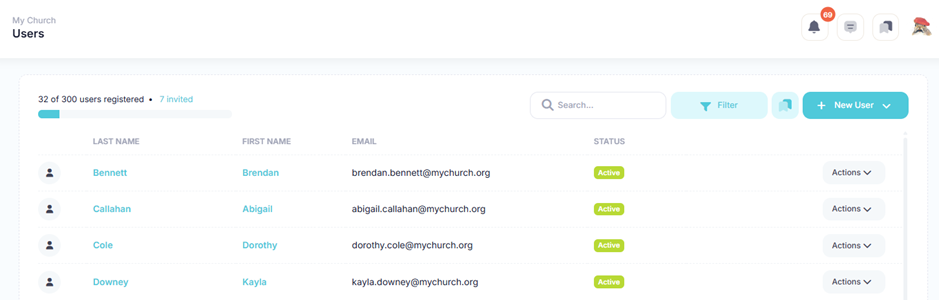
You can view all users in your organization directly from the Users page. You can see all users, regardless of whether they are on any of your teams or not. This will allow you to see what users already exist and to add existing users to your team.
In the left hand side menu, click Users.

You will see a list of all users in your organization.
Searching Users
You can further refine the list of users by searching for users based on the desired search criteria. The table below describes the different types of search criteria.
| Search Criteria | Description |
|---|---|
| First name | Search for users whose first name contains the text entered in the field. |
| Last name | Search for users whose last name contains the text entered in the field. |
| Search for users whose email contains the text entered in the field. | |
| Status |
Search for users with the selected status.
Any - Filter is not set and will search for users regardless of their status
Active - Search for users that have accepted the invitation and are active
Invited - Search for users who have not yet accepted the invitation
|
| Set to auto delete | Toggle this field to search for users that have been set to auto delete. |
| Users on teams I lead | Toggle this field to search for users that are on teams that you lead. |
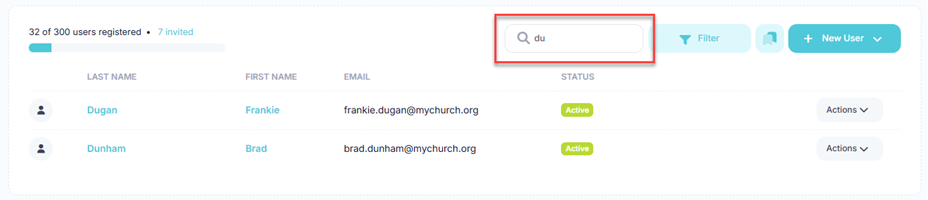
You can search using a simple search or using the filter panel for a more refined search. To perform a simple search, enter the desired search criteria into the Search box. This will dynamically update the list of users with those users whose first name, last name, email, or status contain the text entered in the search box.
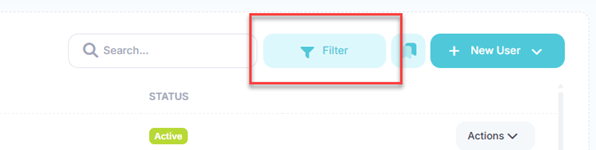
For a more refined search, click the Filters button to reveal the filter popup.
At the Filter Users popup, select your search criteria and click the Apply button. Click the Reset button to clear all filters.
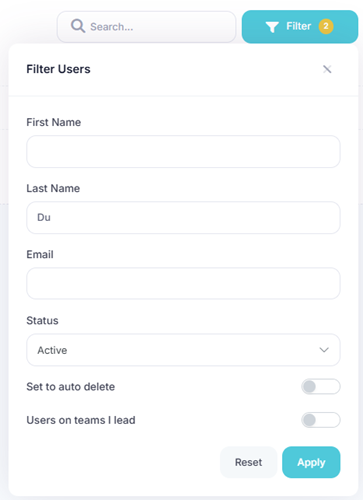
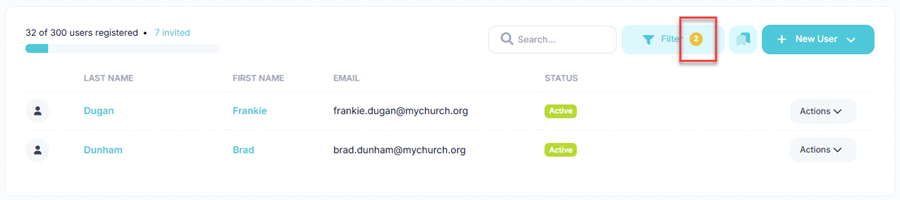
The results of the filter are then shown in the list. When a filter is set, the number of filters applied will appear next to the text in the Filters button.
Number of Users Remaining
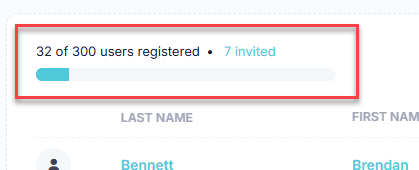
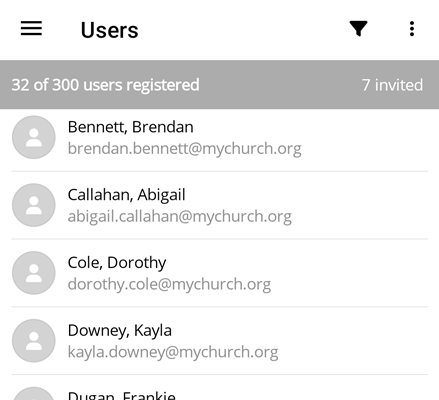
The type of plan your organization has will determine how many total users can be created. You can view how many users are currently registered out of the total number of users allowed by your current plan at the top of the users list.
Send Message To User
Huddle Monkey allows you to send a message to a user without having to specifically create a conversation with that user or navigate to the conversations page to view the conversation. When you send a message to a user, if a conversation does not already exist between you and the specific individual, a new conversation will automatically be created for you.
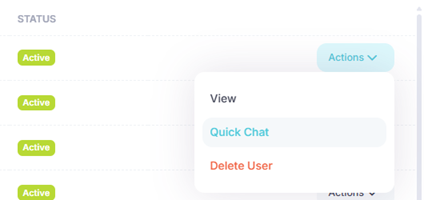
To initiate a conversation with a user, click the Actions button for the desired user and select Quick Chat from the menu.
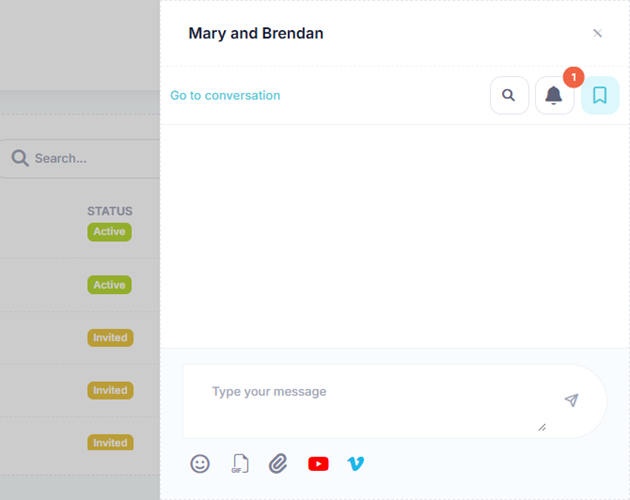
The conversation is created if needed and displayed in the flyout window, where you can then send a message to the user.
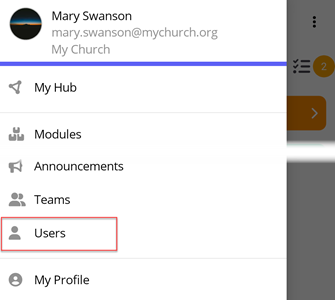
In the toolbar/navigation bar, select the menu icon.

At the flyout, select Users.
You will see a list of all users in your organization.
Searching Users
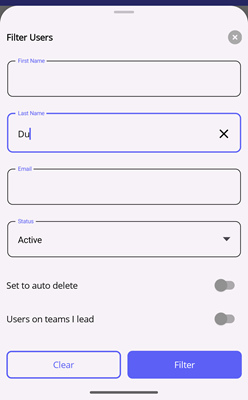
You can further refine the list of users by searching for users based on the desired search criteria. The table below describes the different types of search criteria.
| Search Criteria | Description |
|---|---|
| First name | Search for users whose first name contains the text entered in the field. |
| Last name | Search for users whose last name contains the text entered in the field. |
| Search for users whose email contains the text entered in the field. | |
| Status |
Search for users with the selected status.
Any - Filter is not set and will search for users regardless of their status
Active - Search for users that have accepted the invitation and are active
Invited - Search for users who have not yet accepted the invitation
|
| Set to auto delete | Toggle this field to search for users that have been set to auto delete. |
| Users on teams I lead | Toggle this field to search for users that are on teams that you lead. |
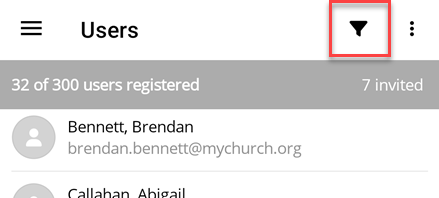
Select the Filters icon in the toolbar to reveal the filter flyout.
At the Filter Users flyout, select your search criteria and select the Filter button. Select the Clear button to clear all filters.
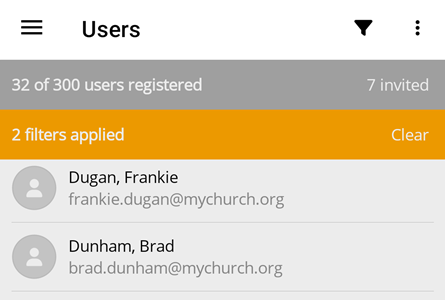
The results of the filter are then shown in the list. When a filter is set, the number of filters applied will appear at the top of the list. You can also clear the filters by selecting the Clear button.
Number of Users Remaining
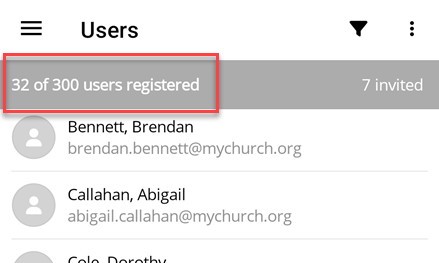
The type of plan your organization has will determine how many total users can be created. You can view how many users are currently registered out of the total number of users allowed by your current plan at the top of the users list.
Send Message To User
Huddle Monkey allows you to send a message to a user without having to specifically create a conversation with that user or navigate to the conversations page to view the conversation. When you send a message to a user, if a conversation does not already exist between you and the specific individual, a new conversation will automatically be created for you.
To initiate a conversation with a user, swipe left on the row for the desired user and select the Message button. The conversation is created if needed and you are directed to the conversation page, where you can then send a message to the user.

- How to create a new user
- How to edit a user's profile
- How to manage a user's teams
- How to view a user’s pending required actions
- How to view a user’s action required history
- How to view a user’s badges
- How to resend the welcome email to a user
- How to reset a user’s password
- How to send a message to a user
- How to delete a user
- How to change your plan