How to resend the welcome email to a user
When a user is created, they are sent an email with an invitation to join Huddle Monkey under your organization. The window to accept the invitation before it expires is 5 days. If the user does not accept the invitation within that window, the invitation link becomes invalid and they are unable to join. When that happens, you can resend the invitation email to one or more users.
In the left hand side menu, click Users.

Resending Welcome Email to Multiple Users
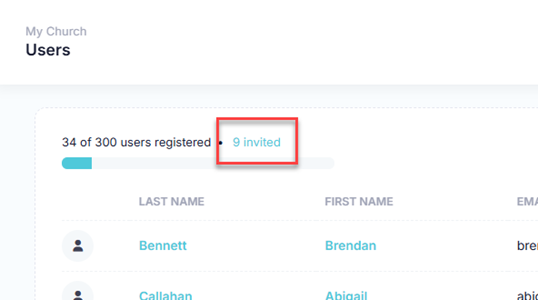
At the Users page, if any pending invitations are outstanding, you will see an X Invited link, where X represents the number of invitations that have not yet been accepted. Click the link to resend the welcome invitation to one or more users.
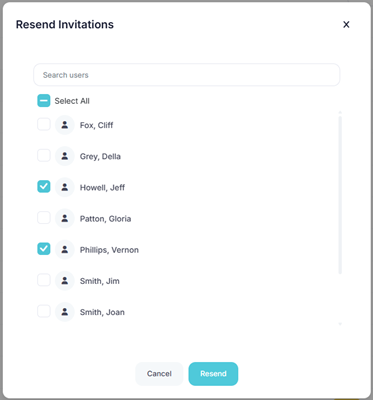
At the Resend Invitations dialog, select one or more users to resend the invitations to. Then click the Resend button to send the invitations.
Resend Welcome Email to Individual User
At the Users page, find the user you want to resend the invitation to and either click the user’s first name or last name or click the Actions button and select View from the menu.

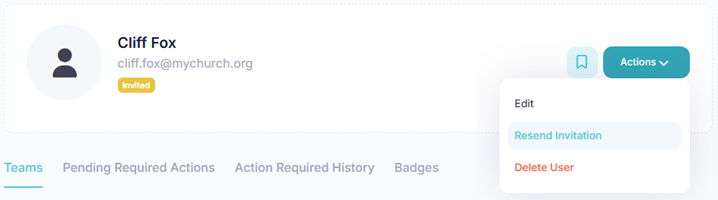
At the View User page, click the Actions button and select Resend Invitation from the menu.
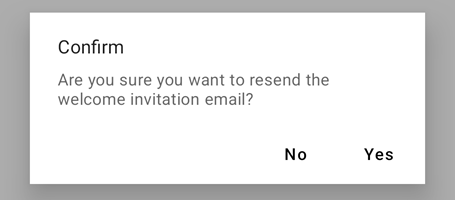
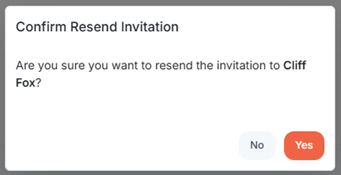
At the Confirm Resend Invitation popup, click Yes.
In the toolbar/navigation bar, select the menu icon.

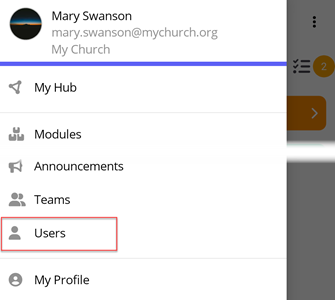
At the flyout, select Users.
Resending Welcome Email to Multiple Users
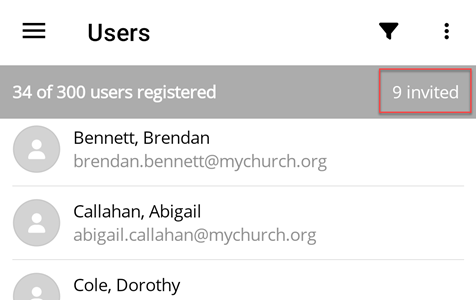
At the Users screen, if any pending invitations are outstanding, you will see an X Invited link, where X represents the number of invitations that have not yet been accepted. Tap the link to resend the welcome invitation to one or more users.
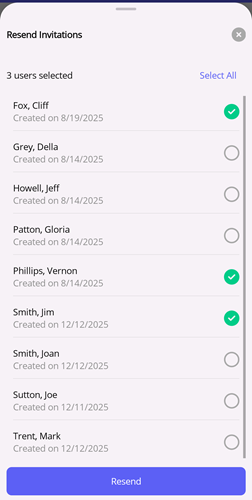
At the Resend Invitations flyout, select one or more users to resend the invitations to. Then select the Resend button to send the invitations.
Resend Welcome Email to Individual User
At the Users screen, select the user you want to resend the invitation to.

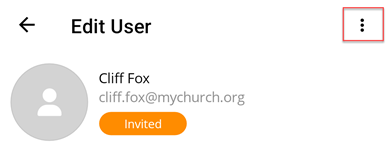
At the Edit User screen, select the ellipse icon.
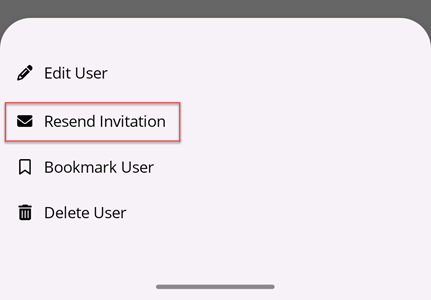
At the flyout, select Resend Invitation.
At the Confirm popup, select Yes.