How to reset a user’s password
If a user has forgotten their password and is unable to use the Forgot Password feature, you can generate a random password for the user. This new password is then emailed to the user.
In the left hand side menu, click Users.

At the Users page, find the user you want to reset the password for and either click the user’s first name or last name or click the Actions button and select View from the menu.

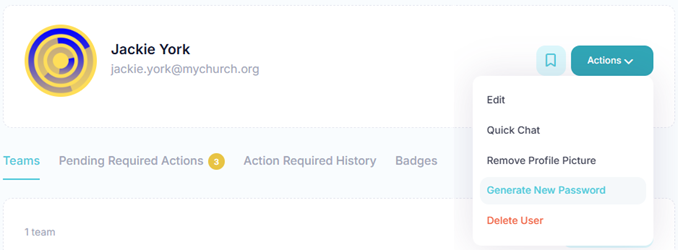
At the View User page, click the Actions button and select Generate New Password from the menu.
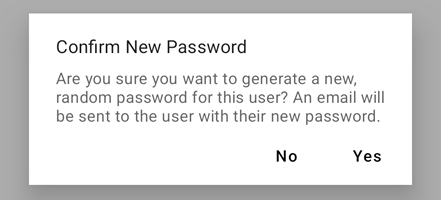
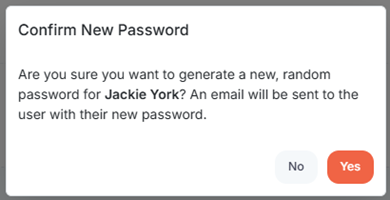
At the Confirm New Password popup, click Yes.
In the toolbar/navigation bar, select the menu icon.

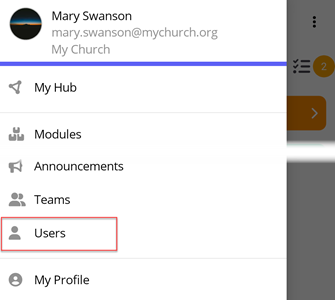
At the flyout, select Users.
At the Users screen, select the user you want to reset the password for.

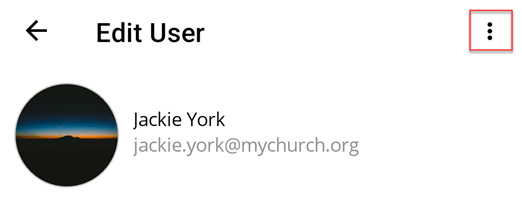
At the Edit User screen, select the ellipse icon.
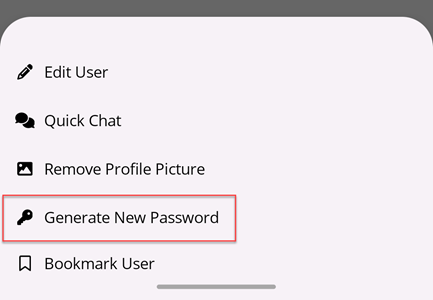
At the flyout, select Generate New Password.
At the Confirm New Passwor popup, select Yes.