How to edit a user's profile
This article will walk you through how to edit a user's first name, last name, and/or email address, as well as remove the user’s profile picture if necessary. You can also make the user a temporary user by setting the Auto Delete On property to the date their accounts are no longer needed. The accounts will be automatically deleted on that date, freeing up your user limit if your plan limits the number of users that can be created.
In the left hand side menu, click Users.

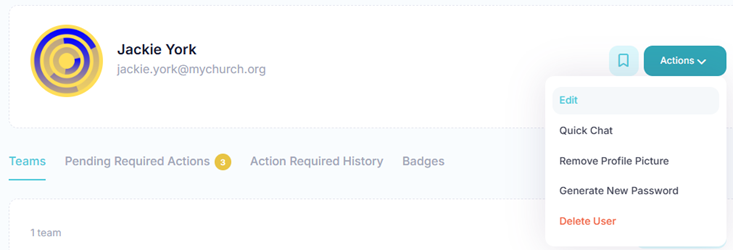
At the Users page, find the user you want to edit and either click the user’s first name or last name or click the Actions button and select View from the menu.

Updating User Name, Email, or Auto Delete Date
At the View User page, click the Actions button and select Edit from the menu.
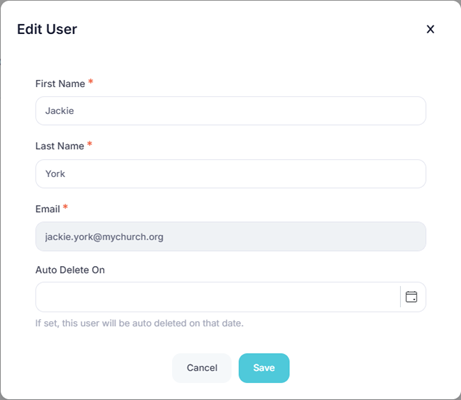
At the Edit User dialog, update the user's first name, last name, and/or email as necessary. If this is a temporary user, you can use the Auto Delete On field to set a date when the user will be automatically deleted. Click the Save button to save the changes.
Remove Profile Picture
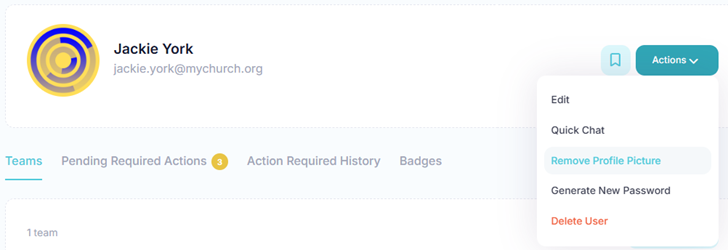
If the user has a profile picture, you have the option to remove it and revert back to the default profile graphic. At the View User page, click the Actions button and select Remove Profile Picture from the menu.
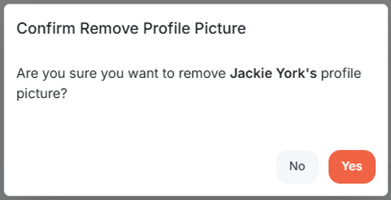
At the Confirm Remove Profile Picture popup, click Yes.
In the toolbar/navigation bar, select the menu icon.

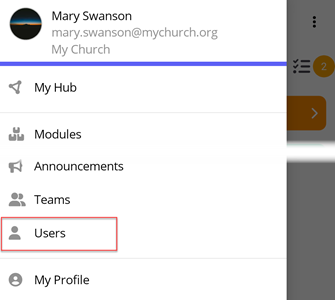
At the flyout, select Users.
At the Users screen, select the user you want to edit.

Updating User Name, Email, or Auto Delete Date
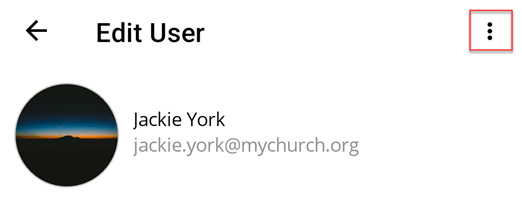
At the Edit User screen, select the ellipse icon.
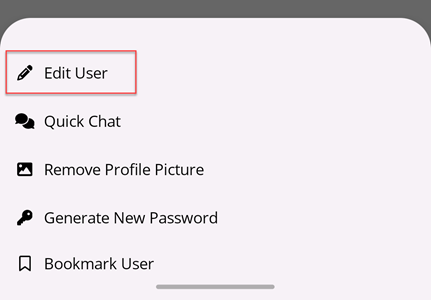
At the flyout, select Edit User.
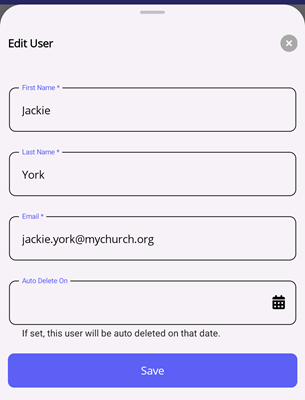
At the Edit User flyout, update the user's first name, last name, and/or email as necessary. If this is a temporary user, you can use the Auto Delete On field to set a date when the user will be automatically deleted. Select the Save button to save the changes.
Remove Profile Picture
If the user has a profile picture, you have the option to remove it and revert back to the default profile graphic. At the Edit User screen, select the ellipse icon.
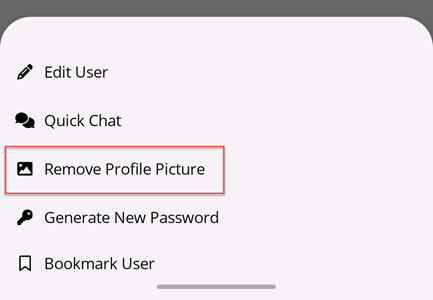
At the flyout, select Remove Profile Picture.
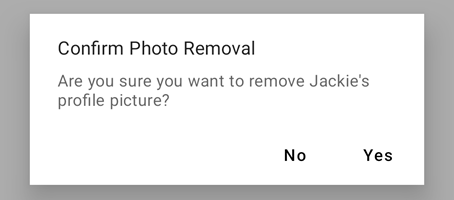
At the Confirm Photo Removal popup, select Yes.