How to view a user’s badges
Badges allow you to define criteria for users to earn badges, such as completing training in the past 6 months or passing an assessment. You can view the user's badges earned, the progress they are making towards a badge, or expired badges under the Badgesy tab.
In the left hand side menu, click Users.

At the Users page, find the user you want to view and either click the user’s first name or last name or click the Actions button and select View from the menu.

Earned Badges
All badges the user has earned and are still active (have not expired) are listed under the Earned tab. It will list the badge and when the user earned the badge.
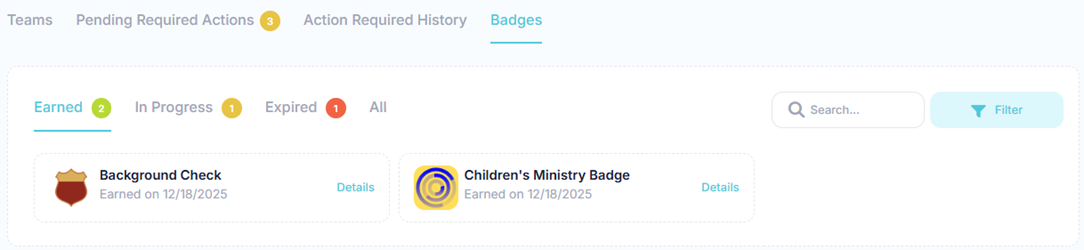
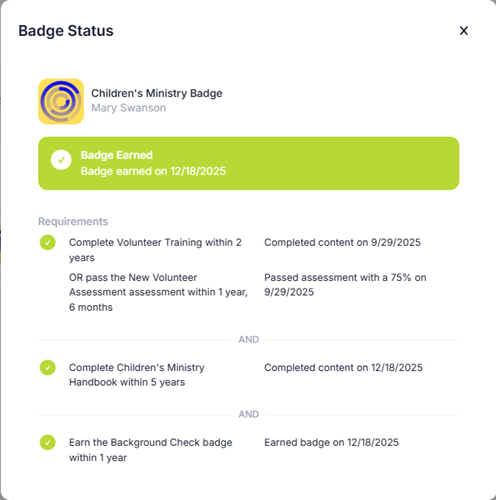
Click the Details link to see a full description of the criteria to earn the badge and how the user satisfied the requirements for the badge.
Badges In Progress
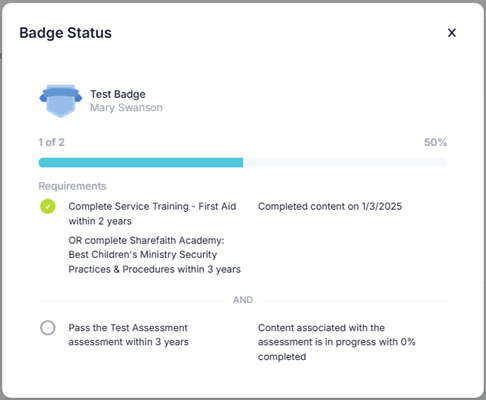
Badges the user is actively working towards are listed under the In Progress tab.
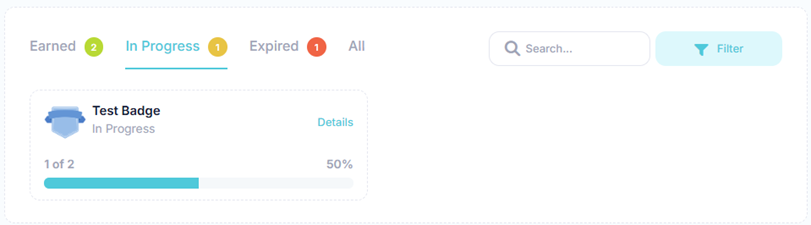
Click the Details link to see a full description of the criteria to earn the badge and the user’s progress on the requirements for the badge. If a requirement is satisfied by completing content or passing an assessment, it will indicate if the user has been assigned the required content and their current progress.
Expired Badges
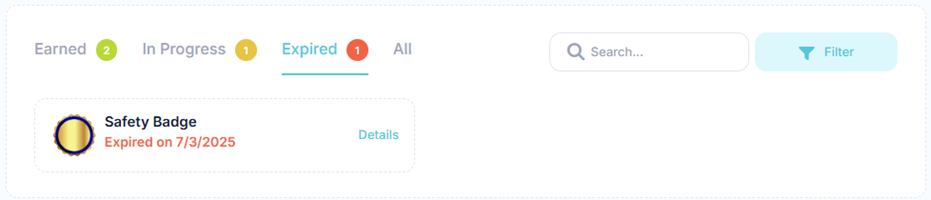
Expired badges for the user are listed under the Expired tab. It will list the badge and when the badge expired.
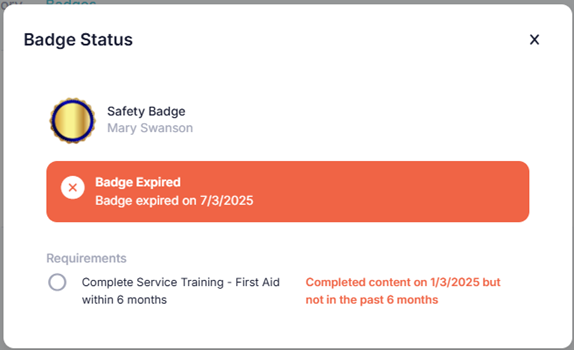
Click the Details link to see a full description of the criteria to earn the badge and which requirements have caused the badge to expire. If a requirement is satisfied by completing content or passing an assessment, it will indicate why that requirement is no longer valid. If the user has been assigned the required content that will satisfy the requirement upon completion, it will show their current progress.
All Badges
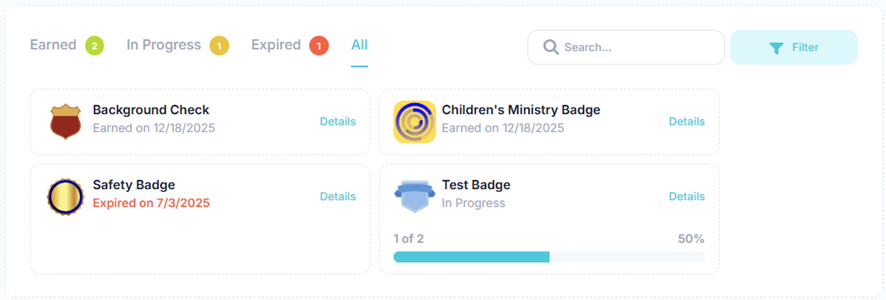
The All tab will show an aggregate view of all badges associated with the user. Click the Details link to see a full description of the criteria to earn the badge and the status of the requirement.
Filter Badges
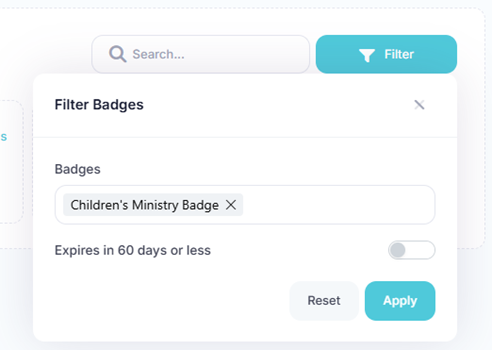
You can further refine list of badges by searching based on the desired search criteria. Using the filter panel, you can select one or more search criteria. The table below describes the different types of search criteria.
| Search Criteria | Description |
|---|---|
| Badges | Search based on the badge names. |
| Expires in 60 days or less | Toggle this option to show badges that will expire in 60 days or less. |
You can search using a simple search or using the filter panel for a more refined search. To perform a simple search, enter the desired search criteria into the Search box. This will dynamically update the list of badges containing the text entered in the search box.
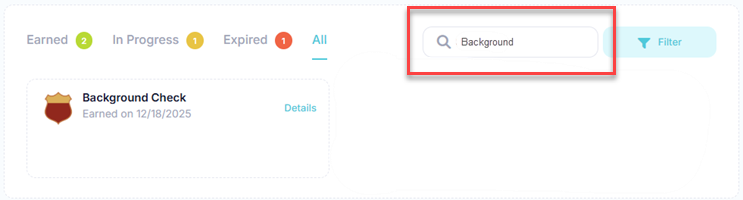
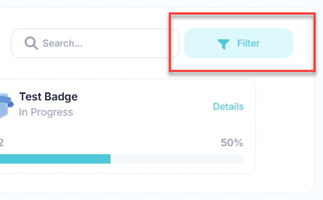
For a more refined search, click the Filters button to reveal the filter popup.
At the Filter Badges popup, select your search criteria and click the Apply button. Click the Reset button to clear all filters.
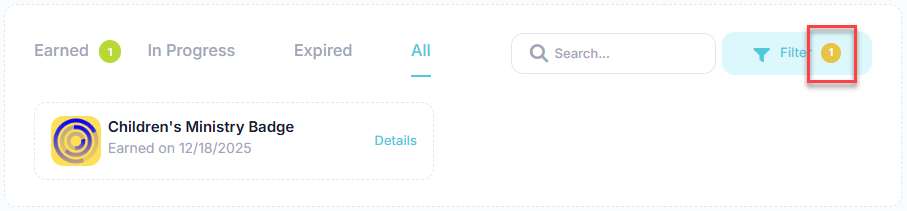
The results of the filter are then shown in the list. When a filter is set, the number of filters applied will appear next to the text in the Filters button.
In the toolbar/navigation bar, select the menu icon.

At the flyout, select Users.
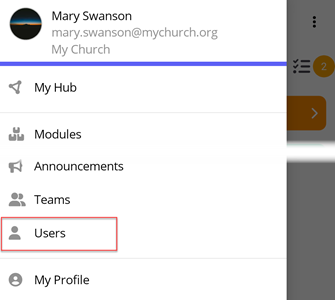
At the Users screen, select the user you want to view.

Earned Badges
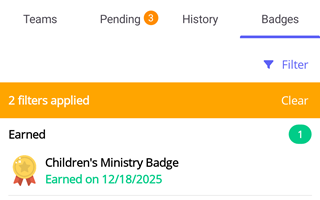
All badges the user has earned and are still active (have not expired) are listed under the Badges tab in the Earned section. It will list the badge and when the user earned the badge.
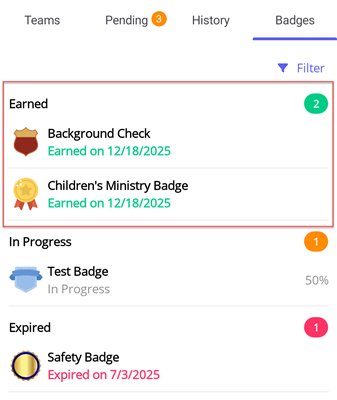
Tap the badge to see a full description of the criteria to earn the badge and how the user satisfied the requirements for the badge.
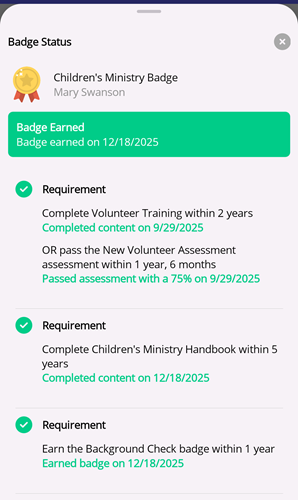
Badges In Progress
Badges the user is actively working towards are listed under the Badges tab in the In Progress section.
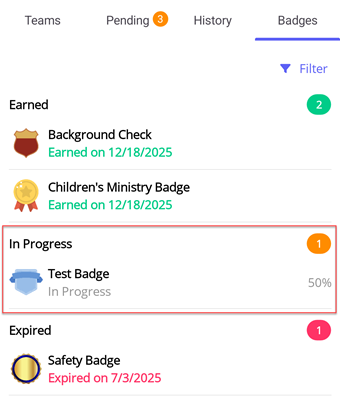
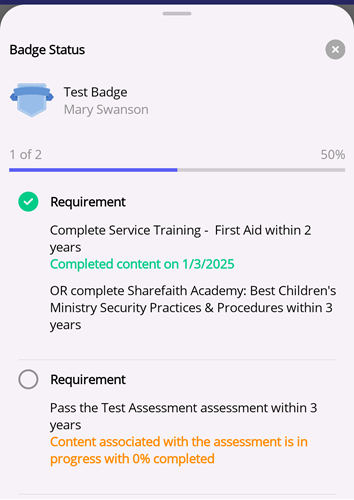
Tap the badge to see a full description of the criteria to earn the badge and the user’s progress on the requirements for the badge. If a requirement is satisfied by completing content or passing an assessment, it will indicate if the user has been assigned the required content and their current progress.
Expired Badges
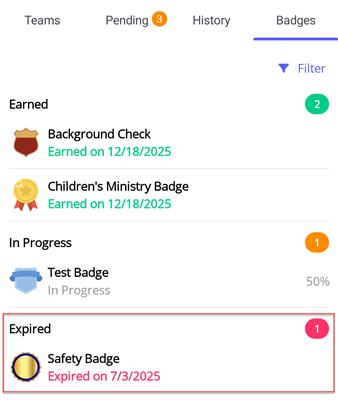
Expired badges for the user are listed under the Badges tab in the Expired section. It will list the badge and when the badge expired.
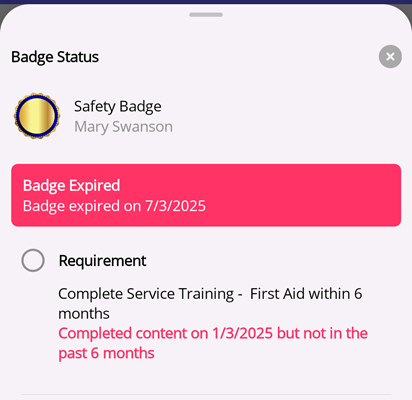
Tap the badge to see a full description of the criteria to earn the badge and which requirements have caused the badge to expire. If a requirement is satisfied by completing content or passing an assessment, it will indicate why that requirement is no longer valid. If the user has been assigned the required content that will satisfy the requirement upon completion, it will show their current progress.
Filter Badges
You can further refine list of badges by searching based on the desired search criteria. Using the filter panel, you can select one or more search criteria. The table below describes the different types of search criteria.
| Search Criteria | Description |
|---|---|
| Badges | Search based on the badge names. |
| Status | Filter by the status of the badge - earned, in progress, or expired |
| Expires in 60 days or less | Toggle this option to show badges that will expire in 60 days or less. |
Select the Filters button to reveal the filter flyout.
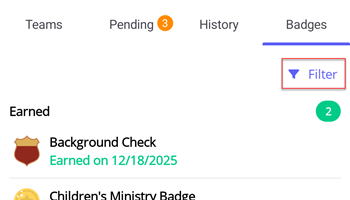
At the Filter Badges flyout, select your search criteria and select the Filter button. Select the Clear button to clear all filters.
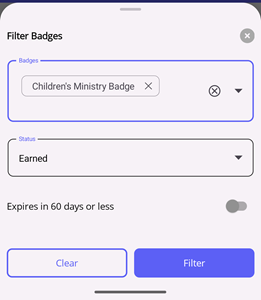
The results of the filter are then shown in the list. When a filter is set, the number of filters applied will appear at the top of the list. You can also clear the filters by selecting the Clear button.