How to manage a user's teams
Users can be added to one or more teams. Teams are used in Huddle Monkey to group users together and are used to invite groups of users into a conversation, announcements, target scheduled content for viewing, scheduling events, and assigning tasks in projects. You can assign one or more team leaders for each team.
In the left hand side menu, click Users.

At the Users page, find the user you want to edit and either click the user’s first name or last name or click the Actions button and select View from the menu.

Add a User to a Team
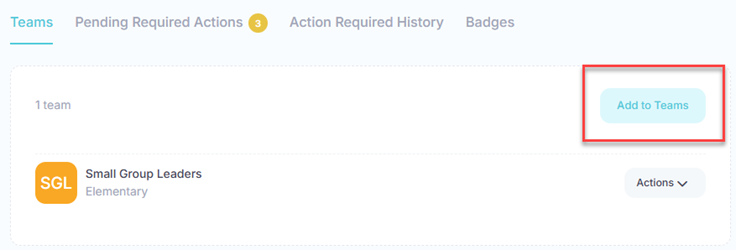
At the View User page, the user’s teams are listed under the Teams tab. Click the Add to Teams button to add a user to one or more teams.
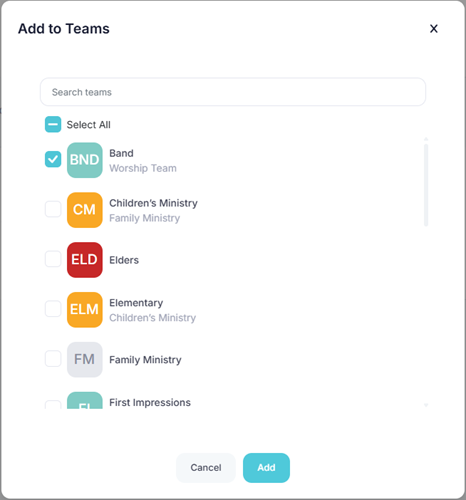
At the Add to Teams dialog, select one or more teams to add the user to from the list. You can either select a team directly from the list or search for teams by entering any of the characters contained in the team. Once you have selected all the teams to add for the user, click Add to make the user member of the teams.
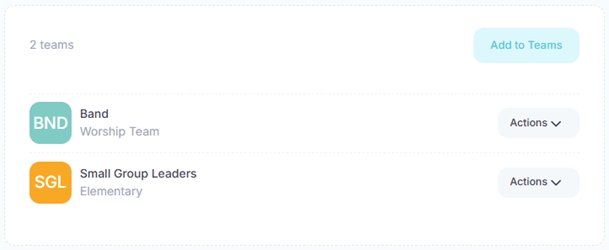
Upon success, the teams are now listed and the user is notified they have been made a member of those teams.
Remove User from Team
Click the Actions button for the team you want to remove from the user and select Remove from Team from the menu.
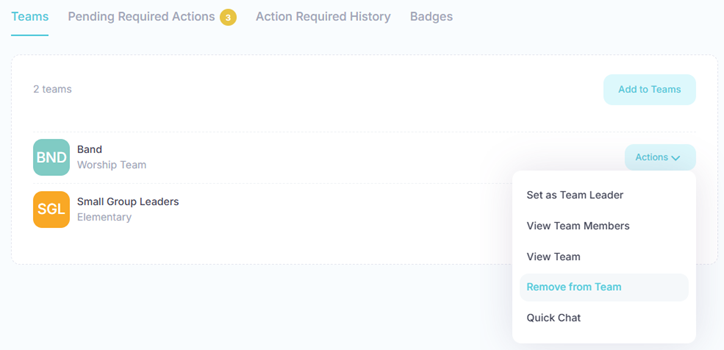
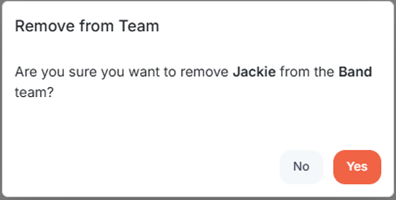
At the Remove from Team popup, click Yes.
Make User a Team Leader
You can assign one or more team leaders for each team. A user assigned as a team leader has the following permissions in Huddle Monkey:
- Create modules and schedule them for any team they lead plus teams below them in the hierarchy
- Manage assessments and badges for their teams
- Initiate a conversation with any team and/or user in the organization
- Create announcements for their teams
- Assign project tasks to their teams and team members
- Manage event schedules for their teams
- Create users and assign them to any team they lead plus teams below them in the hierarchy
- Create, edit, or delete teams below the team they lead in the hierarchy
Click the Actions button for the team you want to set the user as a team leader and select Set as Team Leader from the menu.
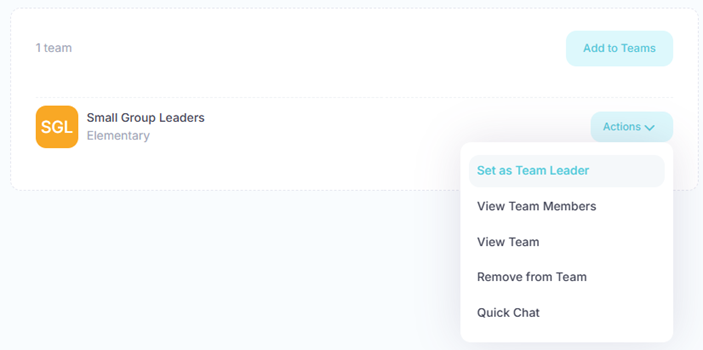
Upon success, the user is set as a team leader, as indicated by the Team Leader badge.

Remove User as Team Leader
Click the Actions button for the team you want to remove the user as a team leader and select Remove as Team Leader from the menu.
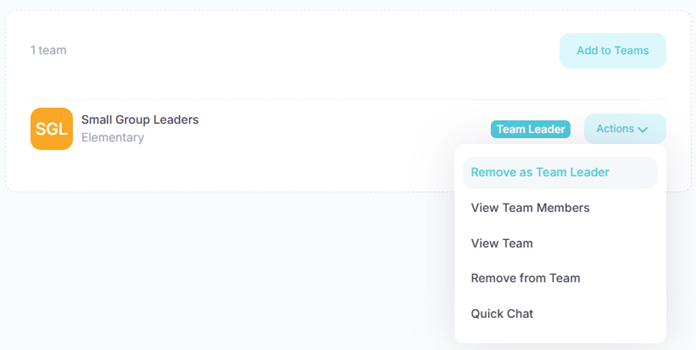
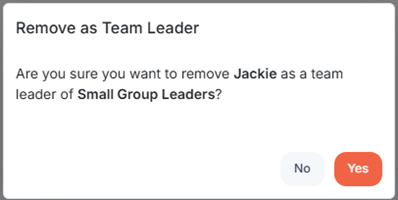
At the Remove as Team Leader popup, click Yes.
View Team Members
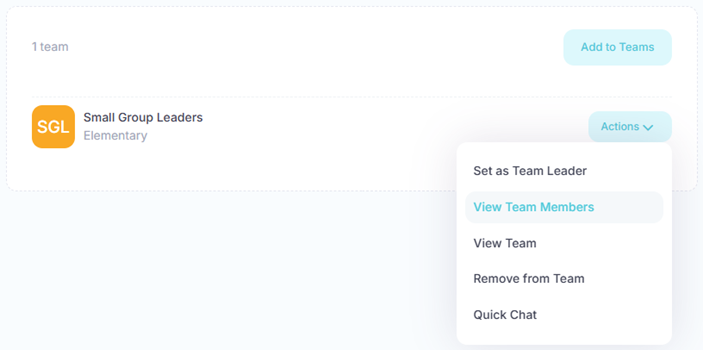
You can view team members and even send an individual team member a message. Click the Actions button for the team you want to view the members and select View Team Members from the menu.
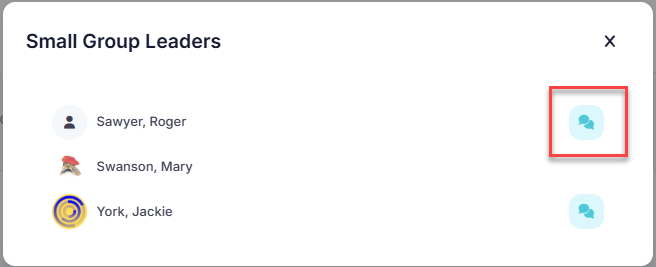
At the team members dialog, you will see a list of all members of the team. Click the Message button to send the team member a message.
Quick Chat with the Team
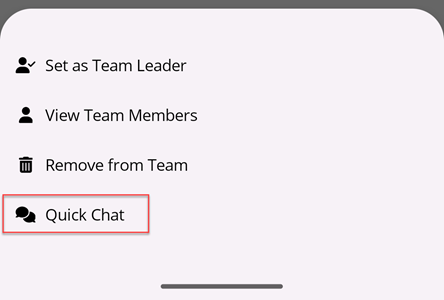
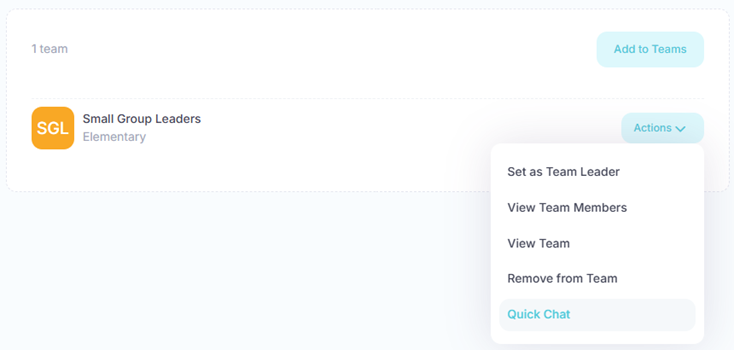
To send the team a message, click the Actions button for the team you want to send a message to and select Quick Chat from the menu. It will generate a new conversation (or use an existing one) between you and the team.
In the toolbar/navigation bar, select the menu icon.

At the flyout, select Users.
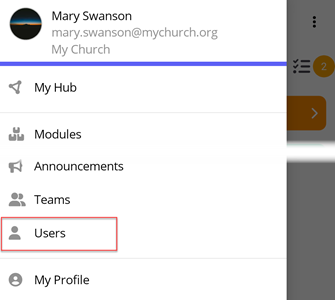
At the Users screen, select the user you want to edit.

Add a User to a Team
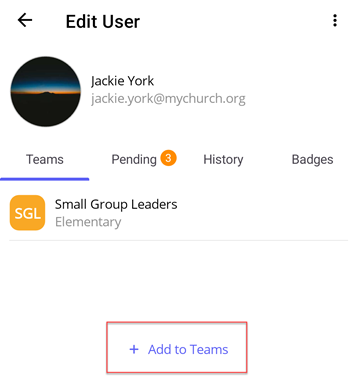
At the Edit User screen, select the Add to Teams button to add a user to one or more teams.
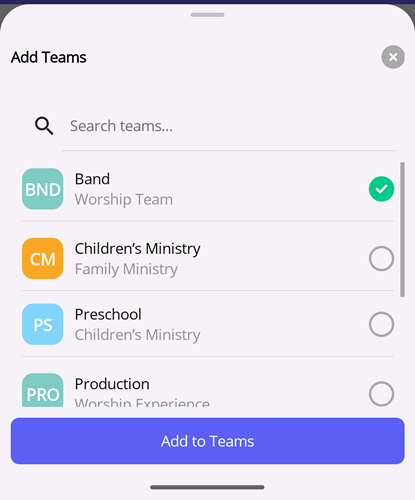
At the Add to Teams flyout, select one or more teams to add the user to from the list. You can either select a team directly from the list or search for teams by entering any of the characters contained in the team. Once you have selected all the teams to add for the user, select Add to make the user member of the teams.
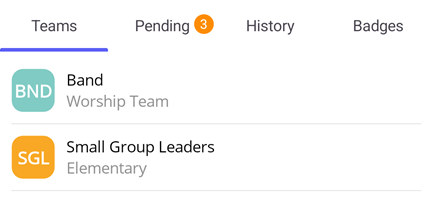
Upon success, the teams are now listed and the user is notified they have been made a member of those teams.
Remove User from Team
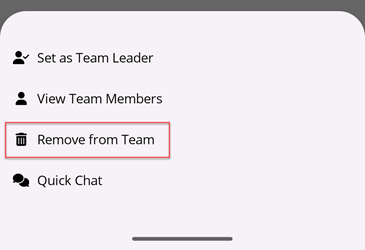
Select the team you want to remove from the user. At the flyout, select Remove from Team.
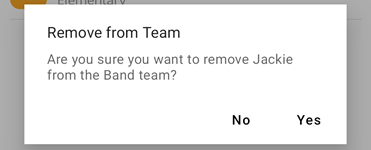
At the Remove from Team popup, select Yes.
Make User a Team Leader
You can assign one or more team leaders for each team. A user assigned as a team leader has the following permissions in Huddle Monkey:
- Create modules and schedule them for any team they lead plus teams below them in the hierarchy
- Manage assessments and badges for their teams
- Initiate a conversation with any team and/or user in the organization
- Create announcements for their teams
- Assign project tasks to their teams and team members
- Manage event schedules for their teams
- Create users and assign them to any team they lead plus teams below them in the hierarchy
- Create, edit, or delete teams below the team they lead in the hierarchy
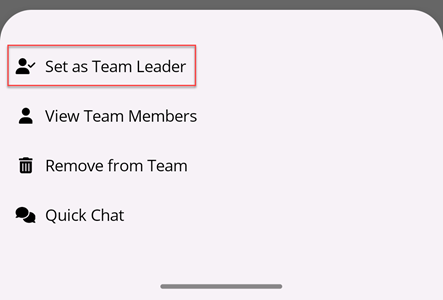
Select the team you want to set the user as a team leader. At the flyout, select Set as Team Leader.
Upon success, the user is set as a team leader, as indicated by the Team Leader badge.

Remove User as Team Leader
Select the team you want to remove the user as a team leader. At the flyout, select Remove as Team Leader.
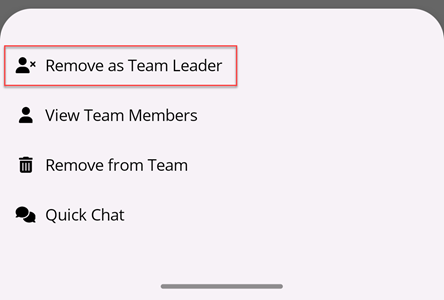
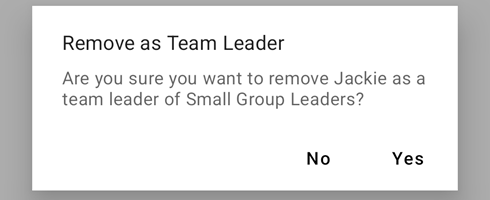
At the Remove as Team Leader popup, select Yes.
View Team Members
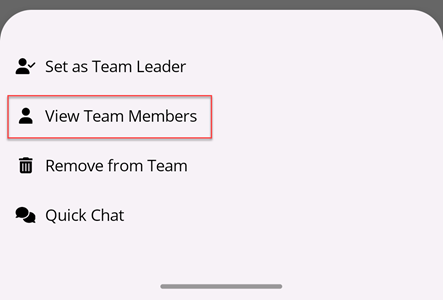
You can view team members and even send an individual team member a message. Select the team you want to view the members and select View Team Members from the flyout.
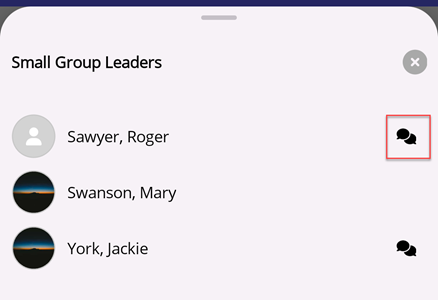
At the team members flyout, you will see a list of all members of the team. Select the Message button to send the team member a message.
Quick Chat with the Team
To send the team a message, select the team and select Quick Chat. It will generate a new conversation (or use an existing one) between you and the team.