How to send a message to a user
Huddle Monkey allows you to send a message to a user without having to specifically create a conversation with that user or navigate to the conversations page to view the conversation. When you send a direct message to a user, if a conversation does not already exist between you and the specific individual, a new conversation will automatically be created for you.
In the left hand side menu, click Users.

Send Message from Users List
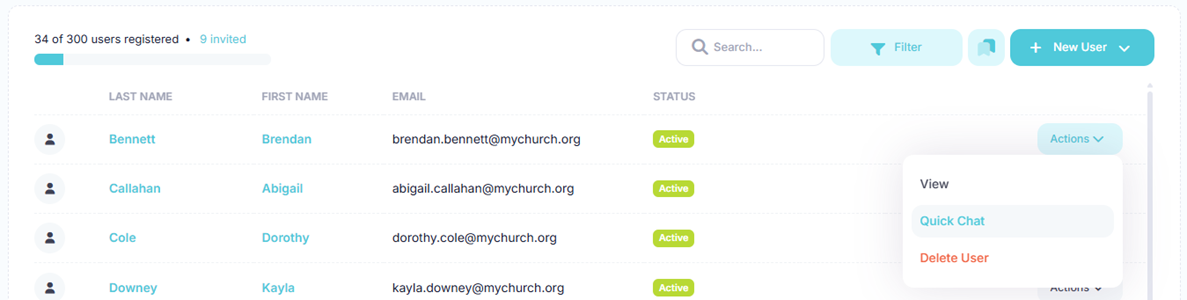
At the Users page, find the user you want to send a message to and click the Actions button and select Quick Chat from the menu.
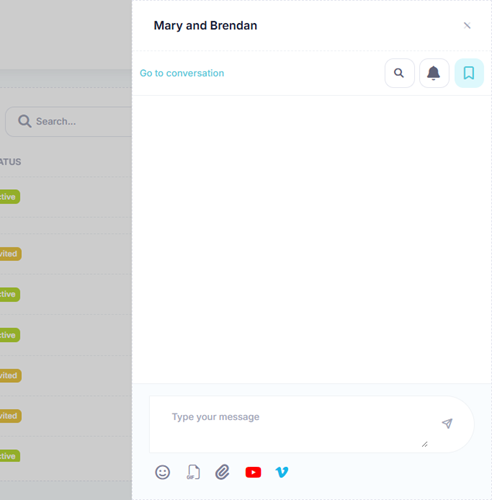
The conversation is displayed in the flyout where you can send messages to the user
Send Message from User View
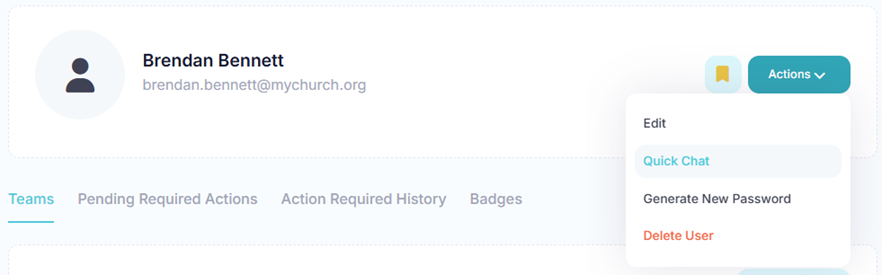
If you are at the View User page, click the Actions button and select Quick Chat from the menu.
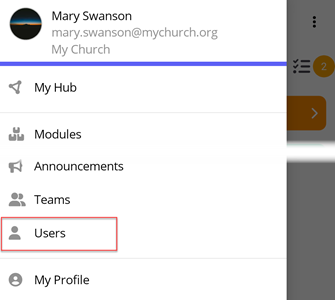
In the toolbar/navigation bar, select the menu icon.

At the flyout, select Users.
Send Message from Users List
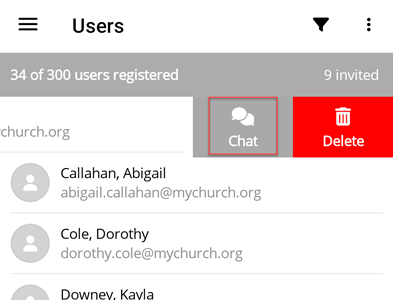
At the Users screen, find the user you want to send a message to and swipe left to reveal the action buttons. Select Chat. You will be directed to the chat scree where you can send messages to the user.
Send Message from User View
If you are at the Edit User screen, select the ellipse icon.
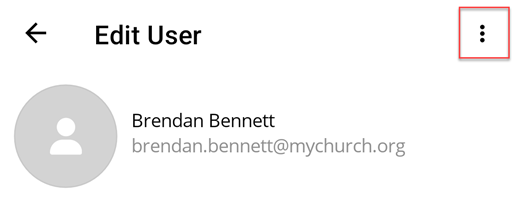
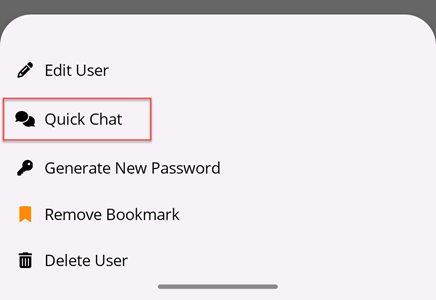
At the flyout, select Quick Chat. You will be directed to the chat screen where you can send messages to the user.