How to create a new user
To create a user, you need a valid email address and first/last name for the user you would like to add. When a user is created, they will receive an email inviting them to join Huddle Monkey at your request. Upon accepting the invitation, they are now part of your organization.
Users can be added one at a time manually or bulk imported using a comma delimited file containing the emails and names to create. The number of users your organization is allowed to create is determined by your plan. The owner of the organization account can increase your plan at any time to accommodate additional users.
Huddle Monkey provides the option to create temporary users by setting a date on the user account when it will be automatically deleted. This may be useful if you have a one time event where you need to train or communicate with volunteers but will no longer need the users to have access to Huddle Monkey once the event is done.
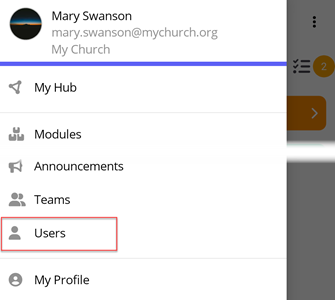
In the left hand side menu, click Users.

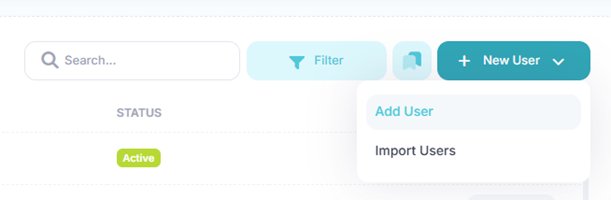
At the Users page, click the New User button, and then select Add User from the menu.
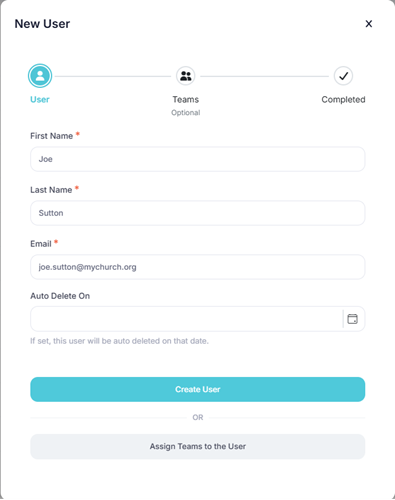
At the New User dialog, complete the user's first name, last name, and email. If this is a temporary user, set a date when the user will be automatically deleted in the Auto Delete On field. Click the Create User button to add the user, or click the Assign Teams to the User button to add the user to one or more teams before creating the user.
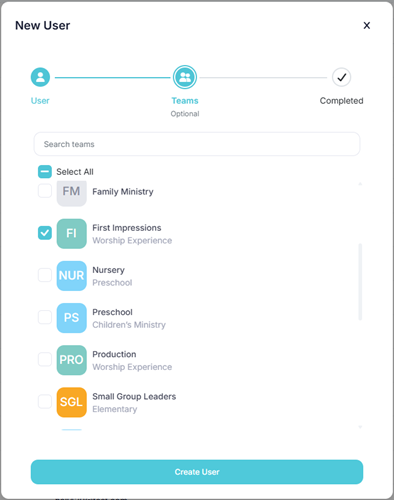
If you are assigning teams to the user, select one or more teams from the list, then click the Create User button to add the user.
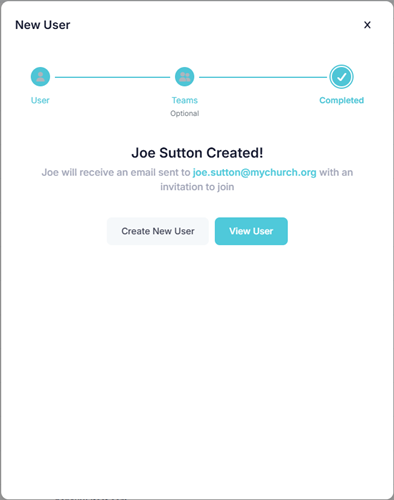
Upon success you can create another user or view the user just created by clicking the View User button.
In the toolbar/navigation bar, select the menu icon.

At the flyout, select Users.
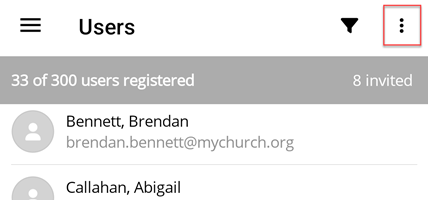
At the Users screen, select the ellipse icon.
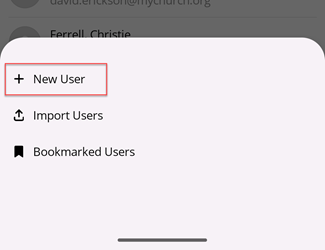
At the flyout, select New User.
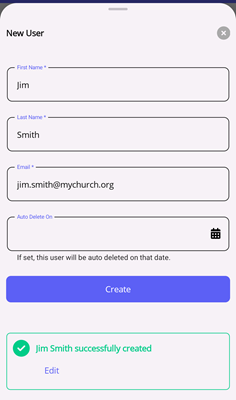
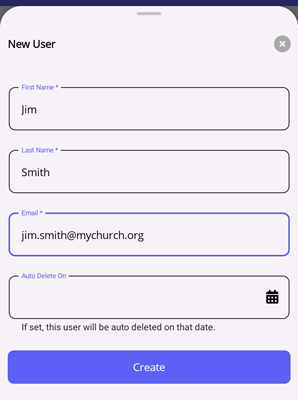
At the New User flyout, complete the user's first name, last name, and email. If this is a temporary user, set a date when the user will be automatically deleted in the Auto Delete On field. Select Create to add the user.
Upon success you can create another user or edit the user just created by selecting the edit button.