How to view a user’s action required history
You can view the user's action required history for content they have already completed under the Action Required History tab. Here you can track training history for what modules they have completed, when it was completed, and view their assessment results if an assessment was associated with the content.
In the left hand side menu, click Users.

At the Users page, find the user you want to view and either click the user’s first name or last name or click the Actions button and select View from the menu.

View History
Under the Action Required History tab, you can see the modules the user has completed and when they completed them.
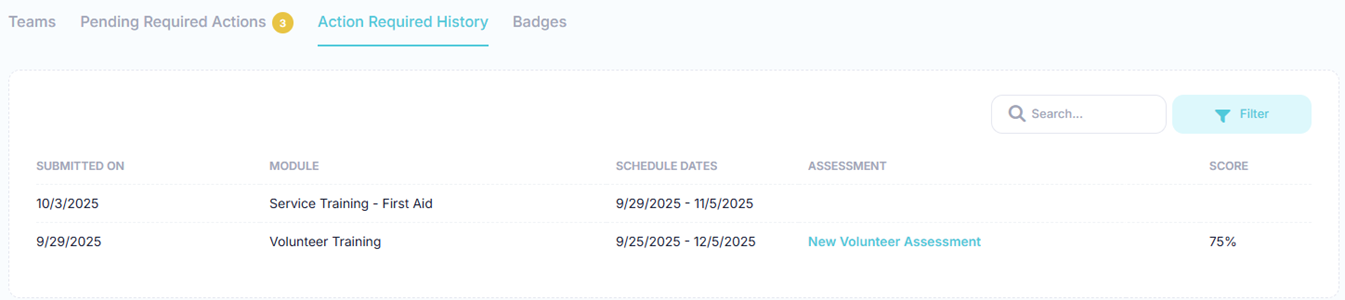
If the content has an assessment associated with it, the name of the assessment along with the user’s score will be listed in the table. You can view the user’s results of the assessment and see how they answered each question by clicking the assessment link to view the assessment results.

You will then be redirected to the assessment results, where you can review the score and the questions/answers results.

Filter History
You can further refine the history by searching based on the desired search criteria. Using the filter panel, you can select one or more search criteria. The table below describes the different types of search criteria.
| Search Criteria | Description |
|---|---|
| Module | Search based on the modules that have been completed. |
| Action Required |
Search based on the required action.
None - No action is required of the user
Complete - User completed the content
Assessment - User completed an assessmentt
|
| Assessments | Search based on the assessment that is associated with the content. |
| Score | For assessments, search for the score received. |
You can search using a simple search or using the filter panel for a more refined search. To perform a simple search, enter the desired search criteria into the Search box. This will dynamically update the list of history with those whose submitted date, module, schedule dates, assessment name, or score contain the text entered in the search box.

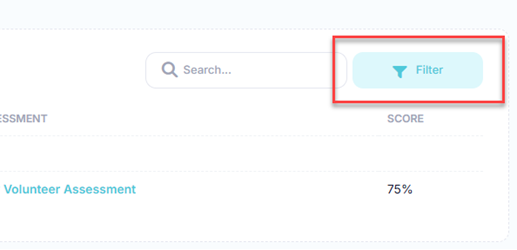
For a more refined search, click the Filters button to reveal the filter popup.
At the Filter History popup, select your search criteria and click the Apply button. Click the Reset button to clear all filters.
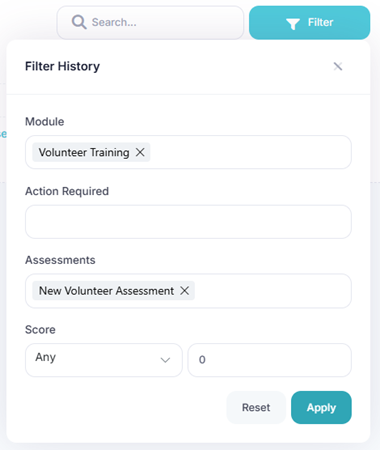
The results of the filter are then shown in the list. When a filter is set, the number of filters applied will appear next to the text in the Filters button.

In the toolbar/navigation bar, select the menu icon.

At the flyout, select Users.
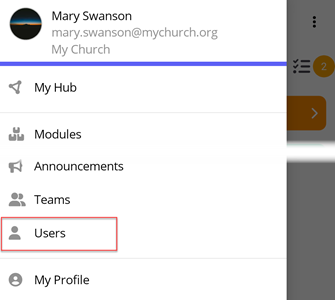
At the Users screen, select the user you want to view.

View History
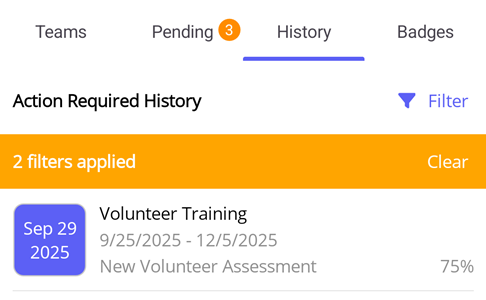
Under the History tab, you can see the modules the user has completed and when they completed them.
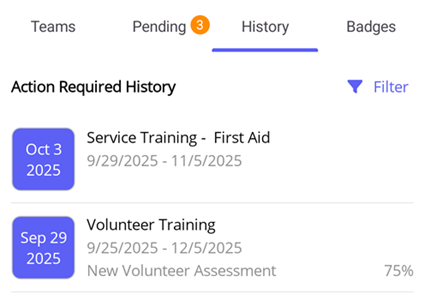
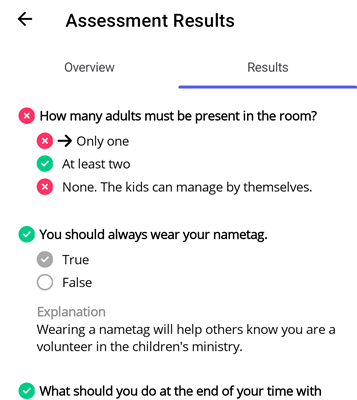
If the content has an assessment associated with it, the name of the assessment along with the user’s score will be listed in the table. You can view the user’s results of the assessment and see how they answered each question by tapping the row to view the assessment results. You will then be redirected to the assessment results, where you can review the score and the questions/answers results.
Filter History
You can further refine the list of pending actions by searching based on the desired search criteria. Using the filter panel, you can select one or more search criteria. The table below describes the different types of search criteria.
| Search Criteria | Description |
|---|---|
| Module | Search based on the modules that have been completed. |
| Action Required |
Search based on the required action.
None - No action is required of the user
Complete - User completed the content
Assessment - User completed an assessmentt
|
| Assessments | Search based on the assessment that is associated with the content. |
| Score | For assessments, search for the score received. |
Select the Filters button to reveal the filter flyout.
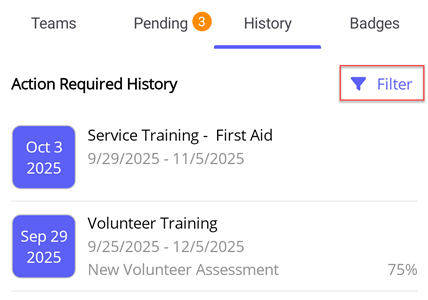
At the Filter History flyout, select your search criteria and select the Filter button. Select the Clear button to clear all filters.
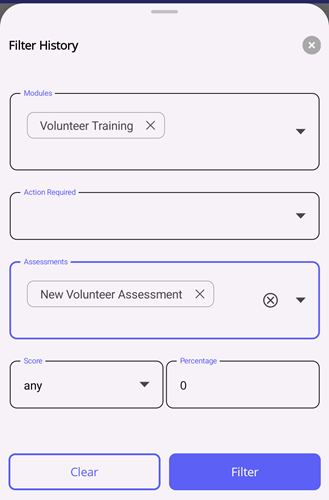
The results of the filter are then shown in the list. When a filter is set, the number of filters applied will appear at the top of the list. You can also clear the filters by selecting the Clear button.