How to delete a user
Users can be deleted when they no longer require access to your organization. If your organization plan has a limit on the number of users that can be created, deleting a user will free up a space in your quota.
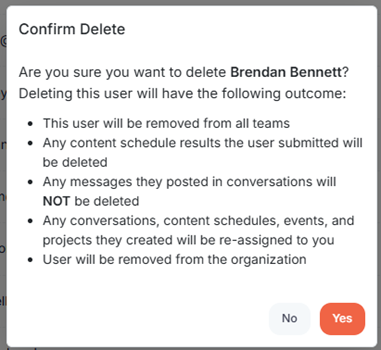
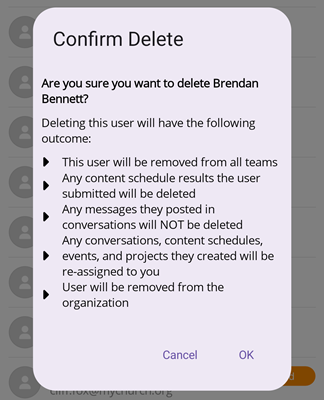
Deleting a user will have the following outcome:
- The user will be removed from all teams
- Any content action required results the user submitted will be deleted
- Any messages they posted in conversations will NOT be deleted
- Any conversations, content schedules, events, or projects they created will be re-assigned to you
- User will be removed from your organization
In the left hand side menu, click Users.

Delete from Users List
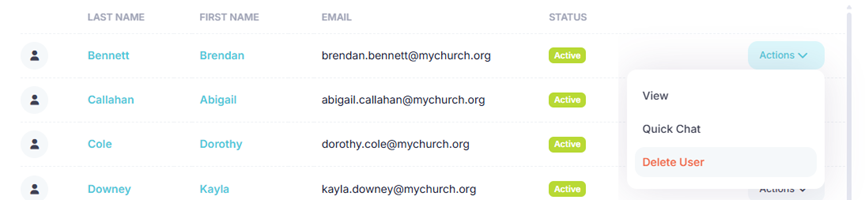
At the Users page, find the user you want to delete and click the Actions button and select Delete User from the menu.
At the Confirm Delete popup, click Yes.
Delete from User View
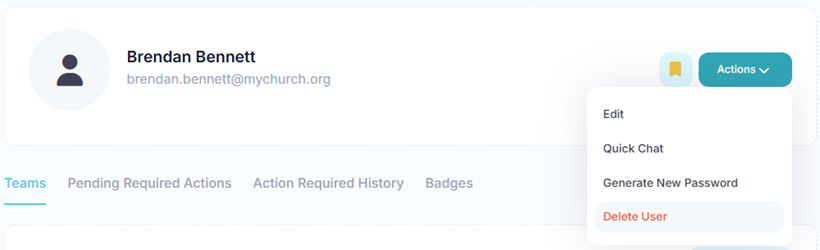
If you are at the View User page, click the Actions button and select Delete User from the menu.
At the Confirm Delete popup, click Yes.
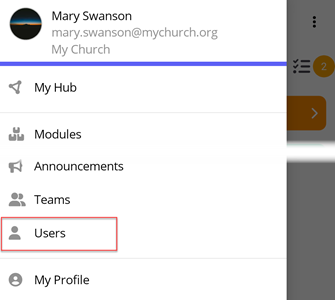
In the toolbar/navigation bar, select the menu icon.

At the flyout, select Users.
Delete from Users List
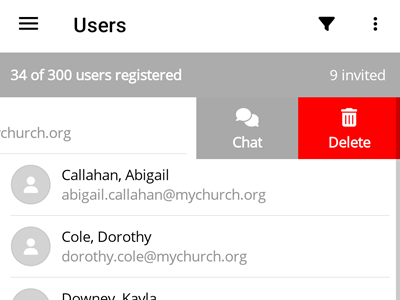
At the Users screen, find the user you want to delete and swipe left to reveal the action buttons. Select Delete.
At the Confirm Delete popup, select Ok.
Delete from User View
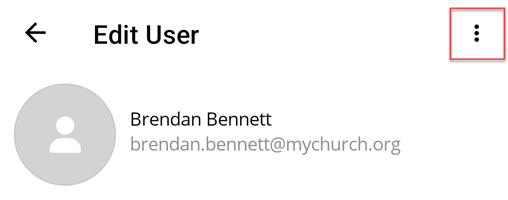
If you are at the Edit User screen, select the ellipse icon.
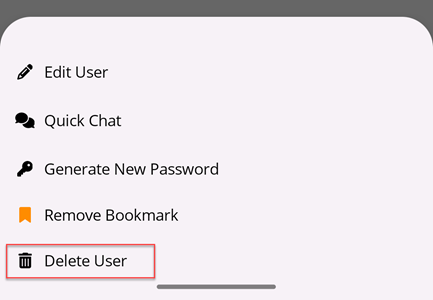
At the flyout, select Delete User.
At the Confirm Delete popup, select Ok.